
9.6 KiB
Minimal Elite Dangerous Launcher
Cross-platform launcher for the game Elite Dangerous. Created mainly to avoid the long startup time of the default launcher when running on Linux. Can be used with Steam and Epic on both Windows and Linux. Game accounts purchased via Frontier or Oculus are not supported.
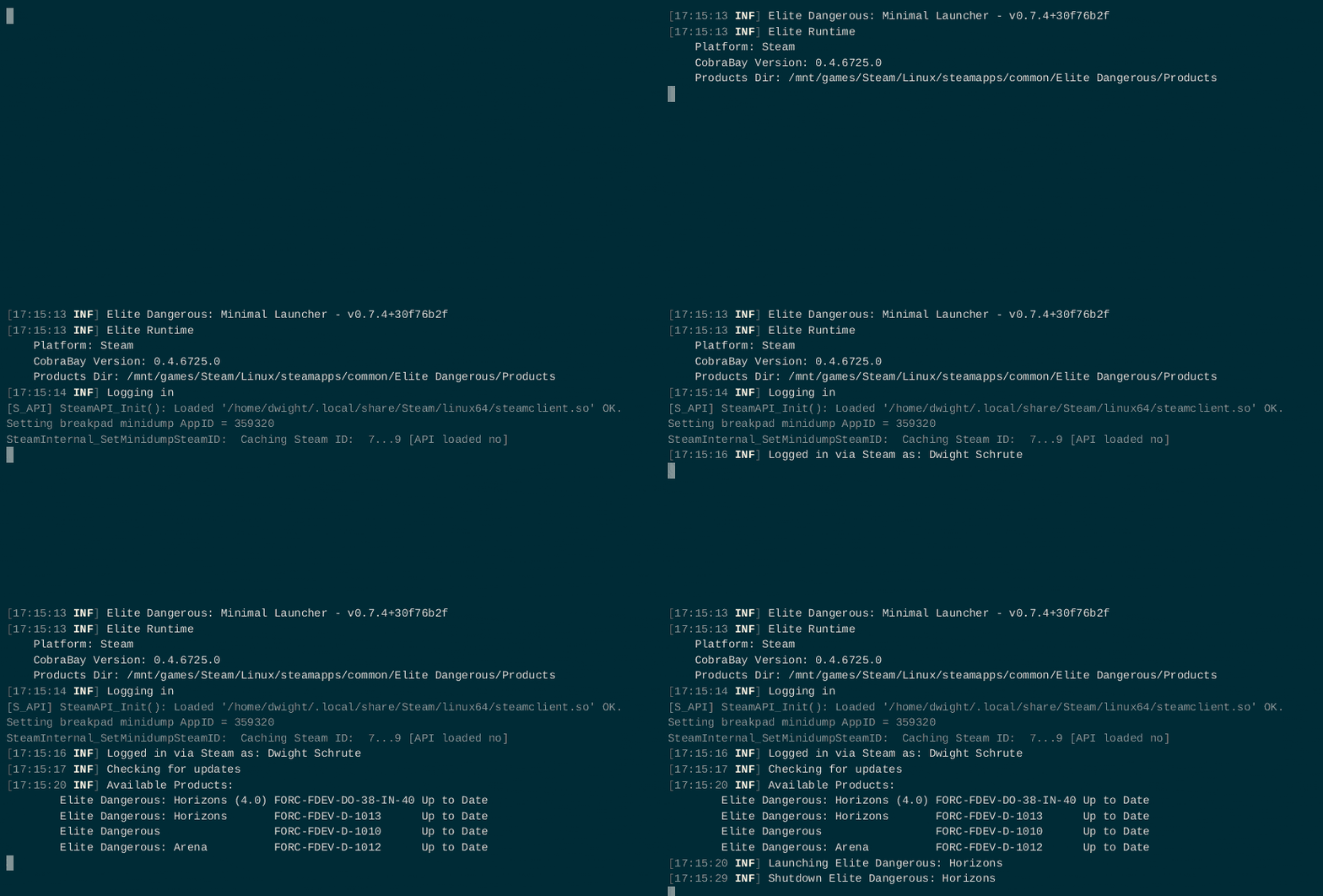
Features
-
Minimal Interface
No waiting for a GUI to load. No waiting for the embedded web browser to load. No waiting for remote logs to be sent to FDev. For those that play on Linux, no waiting for the Wine environment.
-
Auto-run
Automatically starts the game instead of you having to click the Play button. The default launcher also supports this by using the
/autorunflag. -
Auto-launch Processes
Via the Settings file, you can specify additional programs to launch automatically. This includes things like Elite Log Agent and VoiceAttack. Processes are automatically closed when the game closes. This means you don't have to run the programs on computer startup or have to remember to start them before you launch the game.
-
Auto-quit
Automatically close the launcher when you close your game. The default launcher also supports this by using the
/autoquitflag. -
Auto-restart
Automatically restart your game. This can be useful if you're grinding for manufactured engineering materials. Off by default.
-
Multi-Account
Rudimentary support for playing with both your Steam and Epic accounts with one game installation. See details for how this works.
Usage
This launcher doesn't setup/link new accounts. You'll need to launch Elite Dangerous at least once with the default launcher for this one to work.
Setup
Steam
- Download the latest release for your operating system
- Extract executable from the zip/tar archive
- Place
MinEdLauncherin your Elite Dangerous install location so that it's in the same folder asEDLaunch.exe.MinEdLauncher.Bootstrapis for Epic only and may be ignored. To find your install directory:- Right click Elite Dangerous in your Steam library
- Select properties
- In the Local Files tab, click Browse Local Files...
- Update your launch options to point to
MinEdLauncher.-
Right click Elite Dangerous in your Steam library
-
Select properties
-
In the general tab, click Set Launch Options
-
Windows users - Set the value to
cmd /c "MinEdLauncher.exe %command% /autoquit /EDH"Linux users - The command will depend on which terminal emulator you use. Examples for alacritty, gnome-terminal and konsole are below.
alacritty -e MinEdLauncher %command% /autoquit /EDHgnome-terminal -- MinEdLauncher %command% /autoquit /EDHkonsole -e MinEdLauncher %command% /autoquit /EDH
-
- Launch your game as you normally would in Steam
Epic
- Download the latest release for Windows
- Extract executables from the zip archive
- Navigate to your Elite Dangerous install location (folder that contains
EDLaunch.exe) - Copy
MinEdLauncher.exe - Delete or rename
EDLaunch.exe(e.g.EDLaunch.exe.bak) - Copy and rename
MinEdLauncher.Bootstrap.exetoEDLaunch.exe. This step is required because Epic doesn't allow changing the game's startup application. If someone knows how to modify the game's manifest file (EliteDangerous/.egstore/*.manifest), this could be avoided. Please open a new issue if you can help with this. This also means any time the game updates or you verify your game files, you'll have to replaceEDLaunch.exewithMinEdLauncher.Bootstrap.exe. - Update your launch options to auto start your preferred product
- Click Settings in the Epic Games Launcher
- Scroll down to the Manage Games section and click Elite Dangerous
- Check Additional Command Line Arguments
- Set the value to
/autoquit /EDH
- Launch your game as you normally would in Epic
Flags
Flags are strings that are sent to the launcher via command line arguments. The following flags are understood by the default launcher and their meaning is the same for the minimal launcher. Note that specifying a product flag will override whatever option you select when Steam prompts you to select a version of the game.
| Flag | Effect |
|---|---|
| /autoquit | Automatically close the launcher when the game closes |
| /autorun | Automatically start selected product when launcher starts |
| /ed | Select Elite Dangerous as the startup product |
| /edh | Select Elite Dangerous Horizons as the startup product |
| /eda | Select Elite Dangerous Arena as the startup product |
| /vr | Tell the game that you want to play in VR mode |
| -auth_password | Epic exchange code. Used for authenticating with Epic |
Settings
The settings file controls additional settings for the launcher that go beyond what the default launcher supports. The location of this file is in the standard config location for your operating system.
Windows: %LOCALAPPDATA%\min-ed-launcher\settings.json
Linux: $XDG_CONFIG_DIR/min-ed-launcher/settings.json (~/.config if $XDG_CONFIG_DIR isn't set)
| Settings | Effect |
|---|---|
| apiUri | FDev API base URI. Should only be changed if you are doing local development |
| watchForCrashes | Determines if the game should be launched by WatchDog64.exe or not |
| gameLocation | Path to game's install folder. Specify this if the launcher can't figure it out by itself |
| restart | Restart the game after it has closed |
| processes | Additional applications to launch before launching the game |
When specifying a path for either gameLocation or processes.fileName on Windows, it's required to escape backslashes. Make sure to use a
double backslash (\\) instead of a single backslash (\).
{
    "apiUri": "https://api.zaonce.net",
    "watchForCrashes": false,
    "gameLocation": null,
    "restart": {
        "enabled": false,
        "shutdownTimeout": 3
    },
    "processes": [
        {
            "fileName": "C:\\path\\to\\app",
            "arguments": "--arg1 --arg2"
        },
        {
            "fileName": "C:\\path\\to\\app2",
            "arguments": "--arg1 --arg2"
        }
    ]
}
Multi-Account
There is rudimentary support for running your Epic account via Steam. Running a Steam account without Steam installed and running is not supported.
In order to authenticate with an Epic account:
-
You will first need to make sure two files are in your Steam installation directory. You'll likely have to start installing via Epic and then when
EosSdk.dllandEosIF.dllare downloaded, you can stop the install (and delete the rest of the files). Once you have those two files, copy them to your Steam install directory (so that they are in the same folder asMinEdLauncher. It's possible this step will become obsolete if FDev updates their Steam depot to include these files. -
Get an Epic exchange code. This part is really clunky and will need to be done for every launch as the exchange code expires after one use.
Within the Epic launcher, click your username and select manage account. This will open a browser. The URL will contain an
exchangeCode=codeparameter. Copy the code before the page is redirected (can just hit the stop button in your browser). -
Add the
-auth_password=codeargument to your launch options.cmd /c "MinEdLauncher.exe %command% /autoquit /EDH -auth_password=code"You can also create a separate shortcut. Right click game in your Steam library and create desktop shortcut. Edit the properties of the shortcut to include the
-auth_password=codeargument.steam://rungameid/359320// -auth_password=codeThe two trailing slashes are important. Then just edit this shortcut with the new exchange code each time instead of changing your Steam launch options.
Logs
Debug logging is placed in the file logs/min-ed-launcher.log
Build
- Install the .Net 5 SDK
- Run
dotnet build
Release Artifacts
Run either publish.sh or publish.ps1 depending on your OS. These scripts make use of dotnet publish. Artifacts will end up in the artifactsfolder.
Note that the bootstrap project uses NativeAOT to link and compile the app and the .net 5 runtime into a single native executable. It specifically targets Windows and won't publish on a non-Windows machine.